
All Posts
Tutorials
12 min read
How to Connect Google Chat with Salesforce Integration
Published on
Share

Ready to cut middleware out of your stack?
Install Declarative Webhooks on AppExchange and build your first integration today.

Introduction to Google Chat
Google Chat, developed by Google, is a versatile messaging and collaboration platform that has evolved from Google Talk and Google Hangouts. It offers features like instant messaging, group chats, seamless file sharing, integration with Google Workspace apps, video conferencing, notifications, and robust search functionality.
Available on various platforms, Google Chat is well-suited for both personal and professional communication, providing users with a one-stop solution for efficient and organized messaging and collaboration.
Why Integrate Google Chat with Salesforce
Integrating Google Chat with Salesforce offers several benefits, much like Slack and Microsoft Teams integrations, but with some unique aspects.
1. Enhanced Collaboration: Integrating Google Chat with Salesforce allows teams to discuss, share updates, and collaborate seamlessly within the context of customer relationships and sales opportunities. It offers a centralized platform for real-time communication alongside customer data, streamlining decision-making and customer support.
2. Streamlined Workflows: Users can automate and simplify tasks by integrating Google Chat with Salesforce, allowing for the creation of custom workflows and automated notifications. This integration can improve efficiency, reducing manual data entry and enabling quick responses to customer inquiries or hot sales opportunities.
3. Improved Customer Engagement: By connecting Google Chat with Salesforce, teams can access action custom needs in real-time, making it easier to provide personalized service. This helps in understanding customer needs, providing quicker resolutions, and ultimately enhancing customer satisfaction.
Examples of How Businesses Can Leverage Google Chat Integration with Salesforce
Google Chat integration with Salesforce can enhance productivity and collaboration within a sales or customer support team. Here are some examples of how this integration can be utilized:
1. Real-time Lead and Opportunity Updates: Receive immediate Google Chat notifications for important lead and opportunity changes in Salesforce to facilitate quick decision-making by sales teams.
2. Case Management: Integrate Salesforce cases with Google Chat for efficient handling of customer support cases. Notifications in the chat room help support teams allocate and address cases effectively.
3. Automated Task Assignments: Automate task assignment notifications in Google Chat when tasks are created or updated in Salesforce, ensuring timely task completion.
4. Meeting Scheduling: Simplify client meeting scheduling by pulling availability data from Salesforce and sharing it within Google Chat rooms, streamlining the process.
5. Document Sharing and Collaboration: Collaborate on important documents related to Salesforce records by sharing Google Docs, Sheets, or Slides directly within Google Chat rooms, making it easier to work on proposals, reports, and presentations collaboratively.
Real Use Case of How We Use Google Chat Integration with Salesforce
Omnitoria harnesses the power of Google Chat Integration with Salesforce to enhance our sales processes. Whenever users on the Salesforce AppExchange provide us with their contact information to access our Demo video or when a new lead installs Declarative Webhooks in their Salesforce organization, our system automatically posts messages to our Sales Google Space.
Our Google Chat integration with Salesforce streamlines communication within our sales team, ensuring that critical information reaches the right people promptly. This not only accelerates follow-ups but also allows us to provide timely support and guidance to potential customers, ultimately increasing our sales opportunities and fostering more meaningful interactions with our prospects.
Now, I bet you’d like to see what we’re about to build in in action. Here you go!
Google Chat versus Slack and Microsoft Teams
Google Workspace Integration: Google Chat’s existing integrations with Google Workspace tools like Google Drive and Google Meet provides a unique advantage for users heavily invested in Google’s ecosystem. Slack and Microsoft Teams, while offering integrations, may not provide the same level of seamless access to Google productivity apps for Google users.
Salesforce Integration Focus: While Slack and Microsoft Teams offer Salesforce integrations, Google Chat’s integration is designed to align specifically with Google Workspace, making it a top choice for organizations that primarily use Google’s productivity tools alongside Salesforce.
Pricing and Licensing: Google Chat may be more cost-effective for organizations already using Google Workspace, as it is often included in Google’s pricing bundles. Slack and Microsoft Teams have their own pricing structures, which may vary depending on the scale and features required.
User Interface and Experience: Each platform has a unique user interface and experience. Slack is known for its simplicity and extensive app integration options, while Microsoft Teams is favored by organizations using Microsoft 365 due to its out-of-box integration with Office apps. Google Chat, on the other hand, offers a clean and intuitive interface familiar to Google users.
In summary, integrating Google Chat with Salesforce offers a tailored solution for organizations that rely on Google Workspace and Salesforce. It provides a tightly integrated experience within Google’s ecosystem, which can be advantageous for users already immersed in Google’s productivity tools.
Steps to Integrate Salesforce with the Google Chat API
Create a Project in Google Cloud
Login to Google Cloud and the Google Cloud Console at https://console.cloud.google.com/
Create a New Project

Provide a Project name, select and Organization and Location and then click the CREATE button.

Select the new project you have created and click API & Services.
Click Enable APIs and Services and select the Google Chat API and click the Enable button

Once enabled click Create Credentials then Select an API should be Google Chat API and you will select User data for what data you will be accessing. Then click Next.
You can name your App whatever you want i.e. Salesforce Integration with Google Chat. Enter a User support email, optionally an App Logo as well as a required Developer contact information email. Then click Save and Continue.
Add relevant scopes depending on your requirements. Best practices are to use the principle of least privilege, but to keep things simple you can search Google Chat API and add all permissions related to the Google Chat API then click Save and Continue.

Under OAuth Client ID select Application type ‘Web Application’ and name it whatever you want.
We haven’t setup the Authorized redirect URIs yet, but we can anticipate it as something like: https://omnitoria.my.salesforce.com/services/authcallback/DW_Google_Chat. You’ll get the actual URL when we setup the Named Credentials and Auth Provider in Salesforce later on. Click Create.
Finally Download your credentials copying your Client Id and downloading your Client Secret then click Done.
You should be well-equipped to complete the authentication process for your project and gain access to the Google Chat API through Salesforce.
Authenticating your Google Chat API Project from Salesforce
Go to Salesforce Setup → Auth. Providers and click New
Provider Type select Google
Name can be whatever you want but I’m going with DW Google Chat Demo.
URL Suffix will get set to DW_Google_Chat_Demo if you just hit tab.
Enter your Consumer Key and Consumer Secret from the Google Chat API Project you created above.
Set Authorize Endpoint URL to https://accounts.google.com/o/oauth2/v2/auth?access_type=offline&prompt=consent
Set Token Endpoint URL to https://accounts.google.com/o/oauth2/token
User Info Endpoint URL to https://www.googleapis.com/oauth2/v3/userinfo
I set User Proof Key for Code Exchange (PKCE) Extension to false
Set Default Scopes to https://www.googleapis.com/oauth2/v3/userinfo
Set Include Consumer Secret in SOAP API Response to true
Finally, click Save. The final result should look like this.

Go to Setup → Named Credentials → External Credentials
Label: DW Google Chat Demo
Name: DW_Google_Chat_Demo
Authentication Protocol: OAuth 2.0
Authentication Flow Type: Browser Flow
Scope: https://www.googleapis.com/auth/chat.messages.create openid
Authentication Provider: DW Google Chat Demo
Click the New button in the Principals section and enter the following information:
Parameter Name: Named Principal
Sequence Number: 1
Identity Type: Named Principal
Scope: https://www.googleapis.com/auth/chat.messages.create openid
Click the down arrow next to the Principal and select Authenticate. This will initiate the authentication flow.
Choose your Google User Account
Click Allow. It will look something like this:

Hopefully you will see the following success message:

Go to Setup → Named Credentials → New
Label and Name can be whatever you want.
Enabled for Callouts: true
External Credential: DW Google Chat Demo (in my case)
Generate Authorization Header: false (this is important!)
Allowed Namespaces for Callouts: d_wh

Create Permission Set and Assign to Users
Go to Setup → Permission Sets → New
Add whatever Label and API Name you want and click Save
Under Apps → External Credential Principal Access → Edit → Add Available External Credential Principal
Click Manage Assignments and assign the permission set to users you want to have the ability to make the callout.
Create a Google Space and Get the Webhook URL
Go to Gmail → Spaces and click + New space → Create a space
Enter the Space name and optional Description and add anybody you wish to the Space and click Create.

Click the dropdown next to your space name at the top of the screen and select Apps & integrations.

Click Add webhooks.

Enter the Name and an Optional icon.

Finally click the three dots next to your Webhook and click Copy link. Store your webhook URL somewhere. You will need it soon.
Implement an API Callout from Salesforce to the Google Chat API
At Omnitoria, we want to make the API callout from Salesforce to the Google Chat API to notify our sales team when someone watches our demo video or installs Declarative Webhooks.
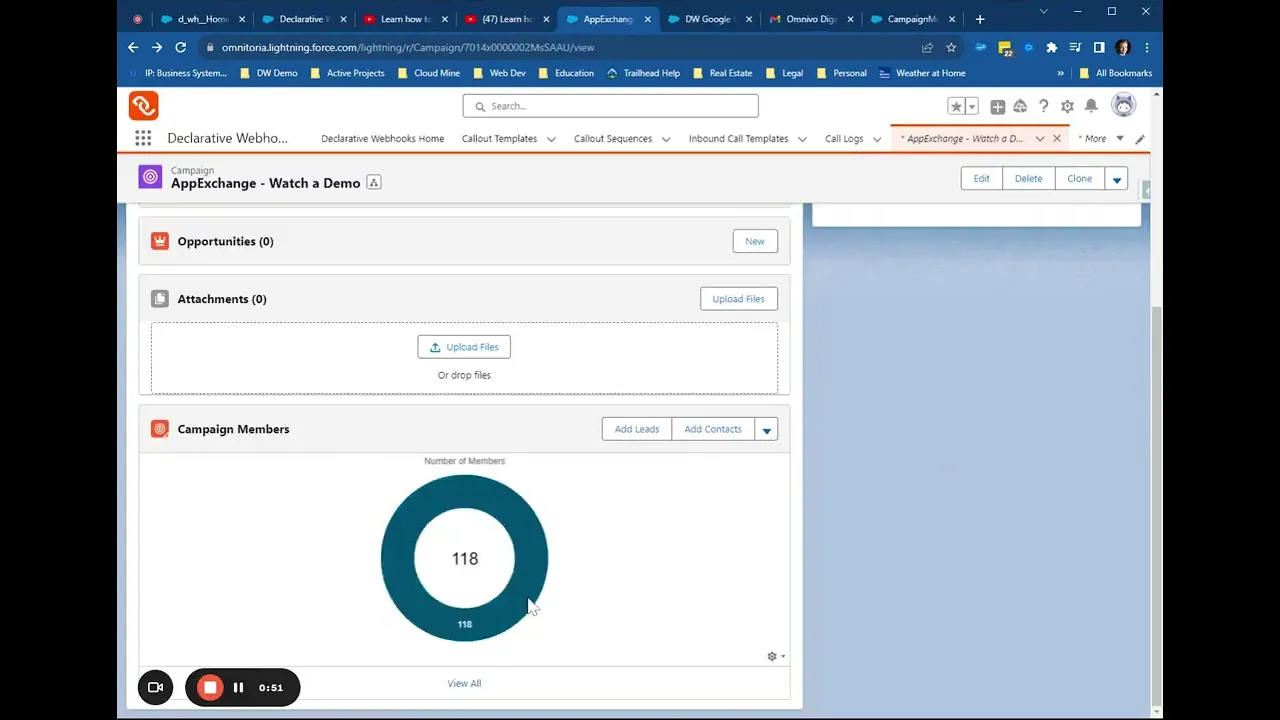
If you’re not a Salesforce ISV, you may not know that we employ a partner org to add leads as Campaign Members when someone watches a gated demo or installs our applications. This enables us to trigger callouts and send messages to our sales team in a Google Space, similar to the one we configured earlier.
You can easily adapt this to any situation where you are adding a Campaign Member to a campaign and you want to know about it. Let’s demonstrate.
Go to the Declarative Webhooks App and Create a Callout Template:
HTTP Method: POST
Callout URL: callout:DW_Google_Chat_Demo/spaces/AAAAzosnaas/messages?key=AIzaSyDdI0hCZtE6vySjMm-WEfRq3CPzqKqqsHI&token=fK6M6BPuJxW9yR4oEZjjeBIO4phdXyntU4-96yWG4pM
Active: Toggle On
Call Authentication: Named Credentials
Request Body Format: JSON (application/JSON)
Template Name: DW Google Chat
Main Object: CampaignMember. I’m going to use CampaignMember because I will want to post messages to the Google Space when a lead or contact records is added to my Campaign.
Number of Records Per Callout: One Record
The final result will look like the following:

Click Save and Continue.
Google API Callout Headers
There’s not any configuration you have to do to the Callout Headers and you can accept the default:
Content-Type: application/json
Accept: application/json

Click Save and Continue.
Google Chat API Callout Request Body
The Request Body is extraordinarily simple for the Google Chat API and has the following form:
{"text" : "some text"}
I’m going to create a little magic in the text node by making it a formula so we can post different messages for different Campaigns. This will make our Callout template re-usable for multiple notifications. Create the “text” node as follows:
Node Name: text
Node Type: Single Value
Node Data Type: Text (String)
If value is null: Send NULL
Value Source: Formula
Formula:
CASE( Campaign.Name,
“AppExchange – Watch a Demo”, “Declarative Webhooks demo video watched on the Salesforce AppExchange by ” & FirstName & ” ” & LastName & IF(ISBLANK(Title), “”, “, ” & Title & “,”) & ” at ” & CompanyOrAccount & ” with email address ” & Email & “. For more information go to: ” & “https://omnitoria.lightning.force.com/” & LeadOrContactId,
“Welcome Email”, “Declarative Webhooks installed from the Salesforce AppExchange by ” & FirstName & ” ” & LastName & IF(ISBLANK(Title), “”, “, ” & Title & “,”) & ” at ” & CompanyOrAccount & ” with email address ” & Email & “. For more information go to: ” & “https://omnitoria.lightning.force.com/” & LeadOrContactId,
“Something happened. I don’t know what.”
)
In the formula, you may observe that we’re examining the Campaign Name and generating distinct messages to post on Google Spaces. This differentiation is based on whether an individual merely viewed the demo or installed Declarative Webhooks.
When you click Done it will look like this and you will click Save and Continue:

Google Chat API Callout Response
There’s nothing really from the Google Chat API Callout Response that I am interested in mapping back to Salesforce so in this case I will leave the Response Body Template alone and click Save and Continue.
Google Chat API Callout Actions
Again, I’m not mapping anything back in the response to Salesforce so configuring Response Actions isn’t necessary in this case and we should proceed to clicking Save and Close.
The final callout template will look like this:

Implement a Salesforce Record-Triggered Flow to Invoke your Google Chat API Callout
Now it’s time to automate the process of posting messages to our Google Space from Salesforce. To do this, we simply need to create a Record-Triggered Flow as follows:
Object: Campaign Member
Trigger: A record is created
Condition Requirements: None
Optimize the Flow for: Action and Related Records:
Next add a Decision element called ‘Which Campaign?” Add the following Outcomes:
AppExchange Demo Video Watched Outcome
Label: AppExchange Demo Video Watched
Outcome API Name: AppExchange_Demo_Video_Watched
Condition Requirement to Execute Outcome: All Condition Are Met (AND)
{!$Record.Campaign.Name} Equals AppExchange – Watch a Demo
AppExchange Install Outcome
Label: AppExchange Install
Outcome API Name: AppExchange_Install
Condition Requirement to Execute Outcome: All Condition Are Met (AND)
{!$Record.Campaign.Name} Equals Welcome Email
The final step is to Invoke our Callouts, but we can actually use the same Callout Template for each because we planned it that way. Simply:
Add two Action Element just name them something unique and add them to both outcomes above.
Select Invoke Callout (Using Developer Name)
Callout Template Developer Name: DWGoogleChat
Record Id: {!$Record.Id}
Your flow will look like the following:

We’ve successfully set up our Salesforce Flow to automatically post a message in our Google Space when a Campaign Member is added to either our “Demo Video Watched” campaign or our “Install” campaign.The kean observer might have noticed a second Apex Action called ‘Add to List and Journey’ in the flow above. We’ll dive into the details of that another time. It’s worth noting the significant power that comes with automating and sequencing multiple integrations together.
Conclusion
We’ve explored the integration of Google Chat with Salesforce, a powerful combination for enhancing collaboration and automating workflows. Google Chat offers a robust messaging and collaboration platform, and when integrated with Salesforce, it brings several benefits, such as improved collaboration, streamlined workflows, and enhanced customer engagement.
We’ve compared this integration with alternatives like Slack and Microsoft Teams, highlighting its advantages for organizations already using Google Workspace and Salesforce. Additionally, we’ve provided examples of how businesses can leverage this integration to boost productivity and improve customer support.
To demonstrate the practicality of this integration, we shared a real use case from Omnitoria, where it streamlines communication within the sales team, ensuring timely follow-ups and support for potential customers.
Finally, we’ve guided you through the steps to integrate Salesforce with the Google Chat API, showing you how to create a project in Google Cloud, authenticate it from Salesforce, and implement an API callout to post messages in Google Chat. The potential for automating and sequencing multiple integrations together opens up new possibilities for efficiency and effectiveness in your operations.
Thank you for joining us on this journey of integration and automation.
FAQ
Questions we hear before every install
Do I need a developer to set this up?
How is this different from Zapier or MuleSoft?
Can I try it before I buy?
Will it work with our existing automation?
What about security?
Do you support Agentforce and AI integrations?
Related posts


